
What is Cursor and what can it do?
Length:
5 min
Published:
May 27, 2025

Have you always wanted someone who finishes your (programming) sentences for you? Meet Cursor.
So what is Cursor? Cursor is an IDE, a program for writing code, with AI built in. It finishes the code you have started, handles refactoring, helps you find bugs, and creates APIs or components. A tireless helper.
If you haven't used Cursor yet but would like to start, we have put together an overview of the basic and advanced features it offers. You don't have to use all of them. Even a handful of them lets you code much faster and more efficiently.
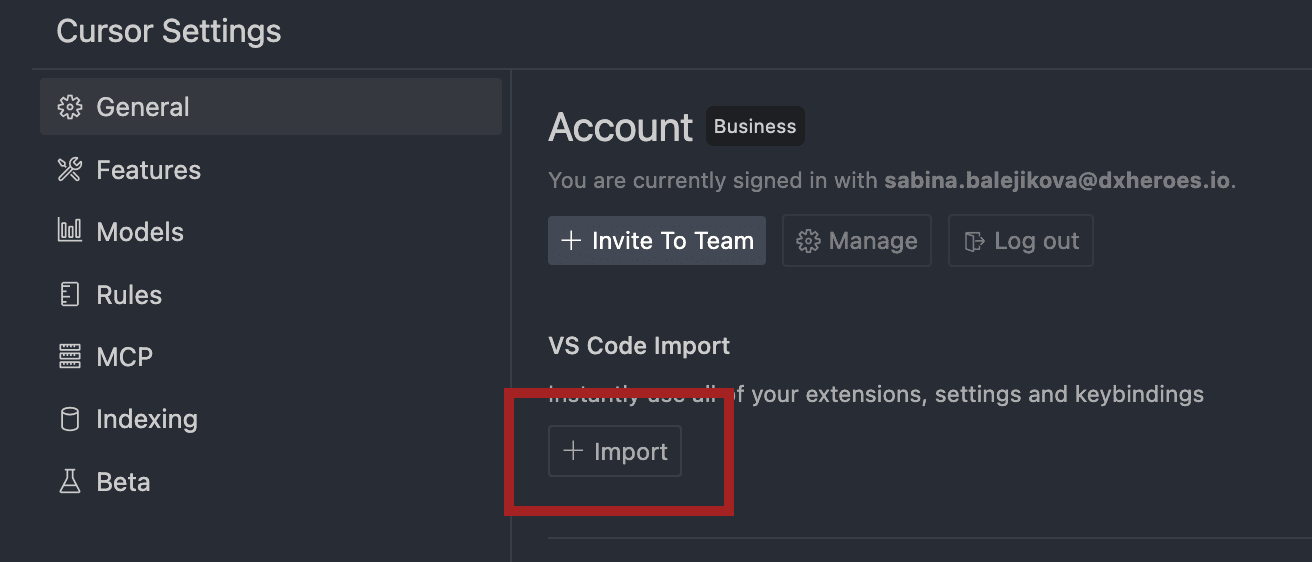
Tip: If you currently use VS Code, switching to Cursor takes almost no effort. Cursor is built on VS Code, and after installation you can carry over all your extensions and settings from VS Code. Adapt to it gradually, though. It can speed up development, but a bad prompt or a misread of the project context can also let the agent change your code beyond recognition.
Basic Instructions
Tab

Use it to accept a suggested piece of code. Cursor tracks what you are writing and tries to suggest what comes next. When you import a function into a file, for example, it looks for the lines where that code can be used.
Chat (command+L)
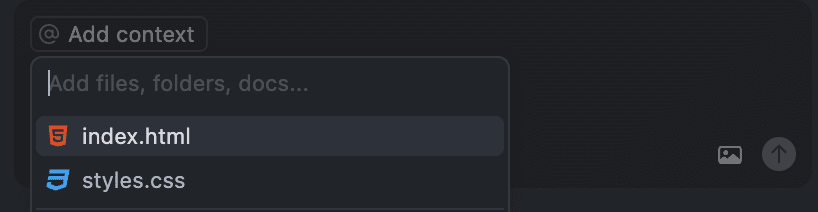
Here you can talk to Cursor about your files. You can add one file, several, or even a whole folder. When the changes touch several files, Cursor has better context and can give you better advice.
You have a choice of three chat modes: Agent, Ask, and Manual.
- Agent changes the code according to your prompt and saves the changes. (Not sure what an agent is? See What's an Agent?.)
- Ask answers questions about your code but makes no changes.
- Manual suggests changes, and you decide which ones to apply.
Edit (command+K)
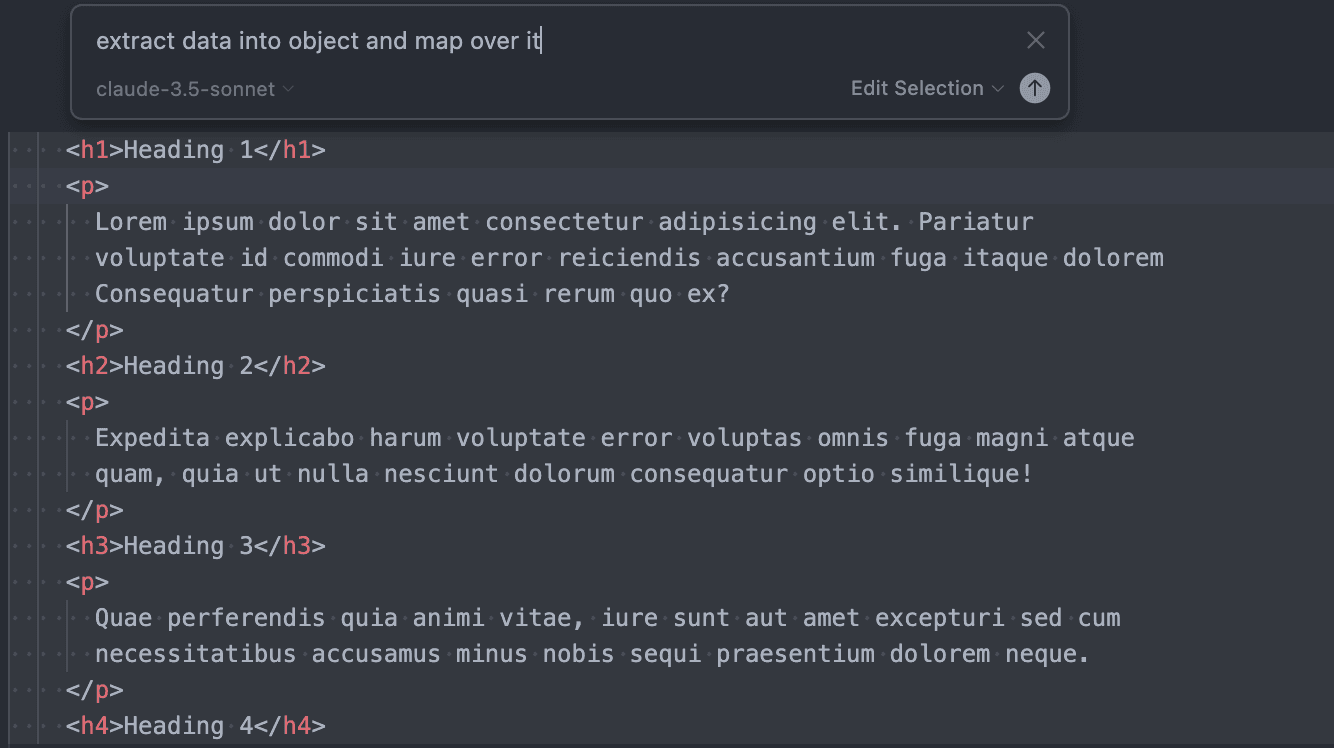
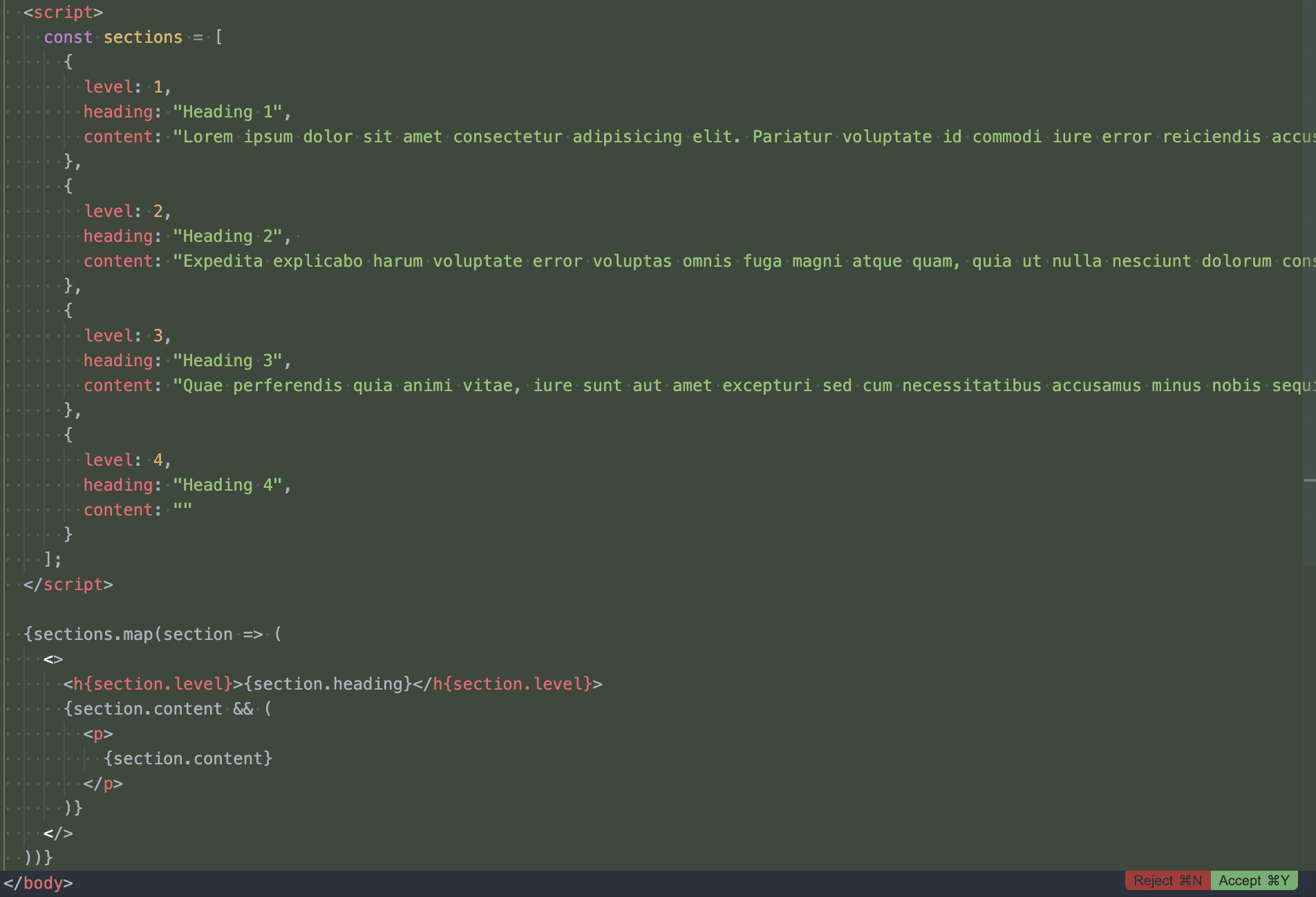
The edit function changes the code you have selected. It is handy for quick refactoring, for example.
It shows you a result that you can accept (command + N) or refuse (command + Y).
Advanced Features
Rules
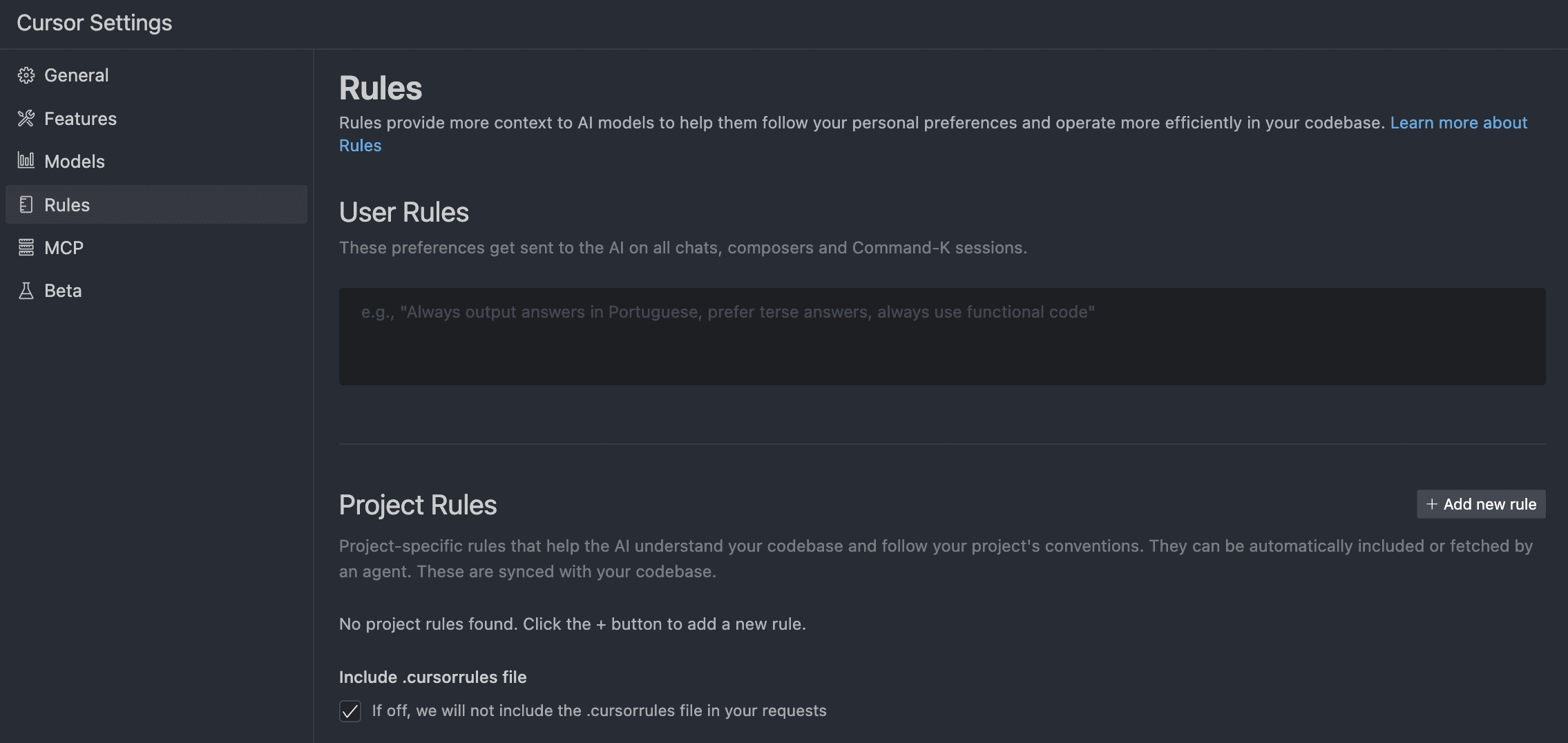
Here you tell Cursor how to talk to you and what its answers should look like.
You can enter any preference you like, for example "always use type instead of interface for TypeScript".
MCP
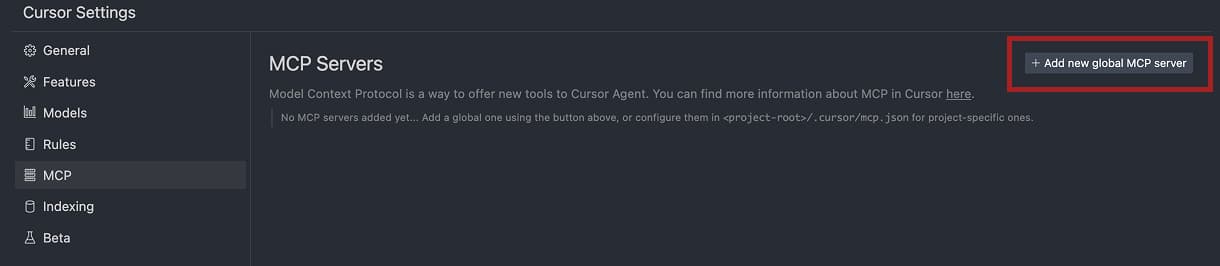
MCP servers add extra functionality. For example, access to a database, to Stripe, and more.
The MCP server configuration uses the JSON format:
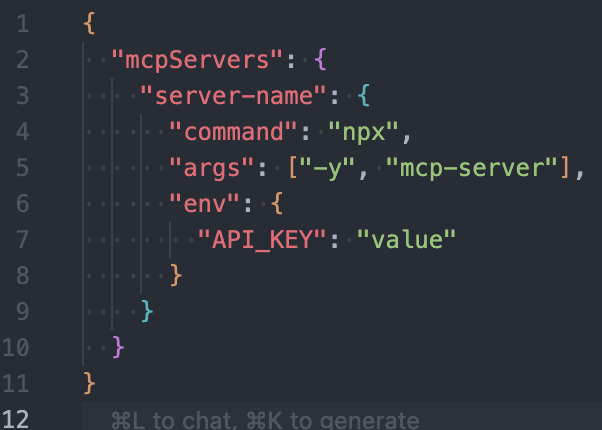
You can set up an MCP server for a specific project, or globally for all projects (create the ~/.cursor/mcp.json file in your home directory).
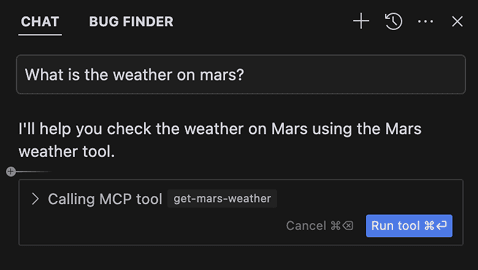
Chat (Agent mode) uses all MCP tools automatically when it finds them relevant. To trigger a specific MCP server yourself, tell the agent to use it and refer to it by name or just a description:
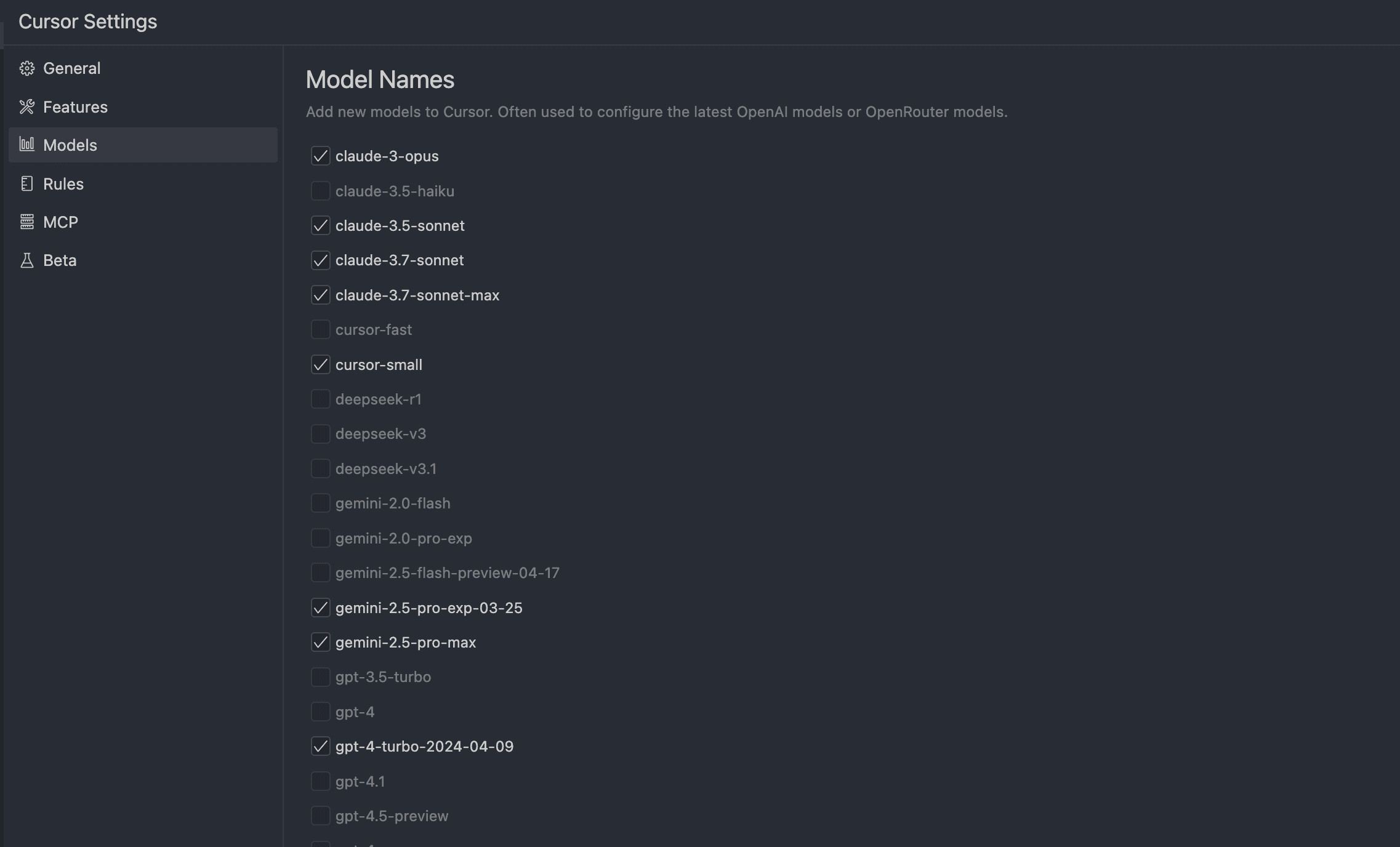
On the settings page you can enable or disable individual MCP servers and use the toggle to control which servers the agent has available:

You can also choose the models you want to use:
Conclusion
Cursor sits on top of VS Code and adds AI features to it. Those include chat, inline edits (editing selected lines within a single file), MCP servers, and rules for communicating with the AI.
Cursor can speed up writing code a lot without making you leave the editor. It suggests code, helps with refactoring, answers anything in chat, and either makes changes for you or lets you approve them by hand.
Watch out for automatic changes, though, and check any generated or edited code. The key is to give the chat as much context as possible, meaning folders and files. If you give Cursor access to only one file's code, it can change it so much that the functions or components in it stop working with the other files in your project.
More context is not the same as better context, though. Once a session grows long, the model uses what you gave it less reliably. That effect has a name: context rot.
Wondering how Cursor holds up against the other big AI coding tools? We run all three in production, so if you are choosing between them, read our field report on Claude Code vs Cursor vs Copilot.
If you want to learn more about Cursor, visit their docs.
And if you haven't tried Cursor yet, you can download it here.
Import from VS Code: If you close the VS Code plugin import window by accident, you can sync later in the settings.
Related articles:
- What's an Agent? - An agent is a type of AI that can perform more complex tasks on its own - without you giving it each step individually.
- What is Prompt? - The most searched and most used terms related to artificial intelligence. Short and simple.
- What is an LLM? - Large Language Model (LLM) is a form of artificial intelligence that specializes in working with language - it understands texts, can write, summarize, translate or answer questions.
- What is Vibe coding? - Vibe coding is a way of creating applications through AI where prompting is used instead of manually writing code. Learn about its benefits and pitfalls.
- AI: Assistant or threat to juniors? - AI in development through the eyes of a junior: a valuable helper or an invisible crutch that hinders growth?
- Claude Code vs Cursor vs Copilot: a field report - How the three biggest AI coding tools fail in production, and how to pick by team adoption phase.
Want to stay one step ahead?
Don't miss our best insights. No spam, just practical analyses, invitations to exclusive events, and podcast summaries delivered straight to your inbox.